Roblox Studio Creator Tool
Accessory Fitter for
Roblox Studio.
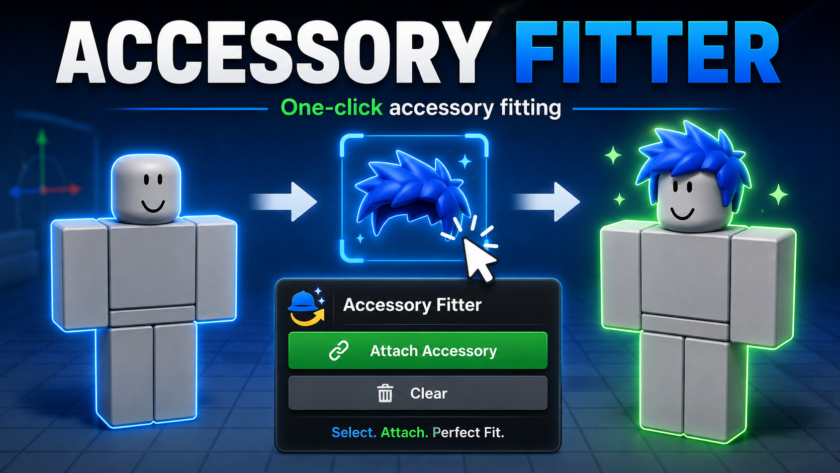
Attach accessories to NPCs, rigs, and characters more easily inside Roblox Studio.
Accessory Fitter is a simple plugin that helps when copy and paste does not place
hats, hair, or other accessories in the correct position. Select a character,
select an accessory, and click Attach Accessory.
Get Plugin on Creator Store →
Read Details
What is Accessory Fitter?
Accessory Fitter is a Roblox Studio plugin that helps creators attach accessories
to characters, NPCs, and rigs without relying only on copy and paste.
In some Roblox Studio workflows, copying an accessory into a character does not always
place it correctly. The accessory may appear in the wrong position, stay near its Handle,
or attach in a way that does not match the character. Accessory Fitter gives creators
a clearer button-based workflow for this task.
Main Features
The plugin can recognize the parent accessory.
to the selected character.
- Roblox Studio plugin workflow
- Attach accessories to characters
- Useful for NPCs and rigs
- Helps when copy and paste is unreliable
- Character selection support
- Accessory selection support
- Selection highlight feedback
- Clear button to reset selection
Why This Plugin Is Useful
Many creators build NPCs, display characters, custom rigs, shop models, or avatar-style
characters in Roblox Studio. In those workflows, accessories often need to be tested,
changed, or attached repeatedly.
When a normal copy and paste workflow does not attach an accessory correctly,
Accessory Fitter gives you a simple alternative: choose the character, choose the accessory,
and use the plugin button.
It is not an in-game player system. It helps you prepare characters, NPCs,
and rigs while building your experience.
Basic Workflow
Accessory Fitter is designed to keep the process easy to understand.
You do not need a complicated setup to start using it.
- Step 1
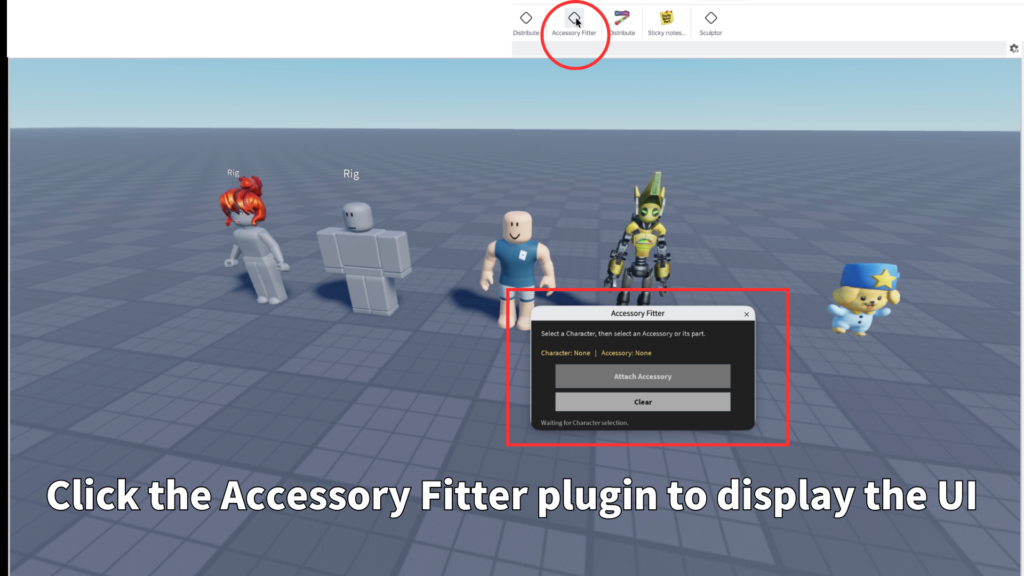
Open Accessory Fitter from the Plugins tab. - Step 2
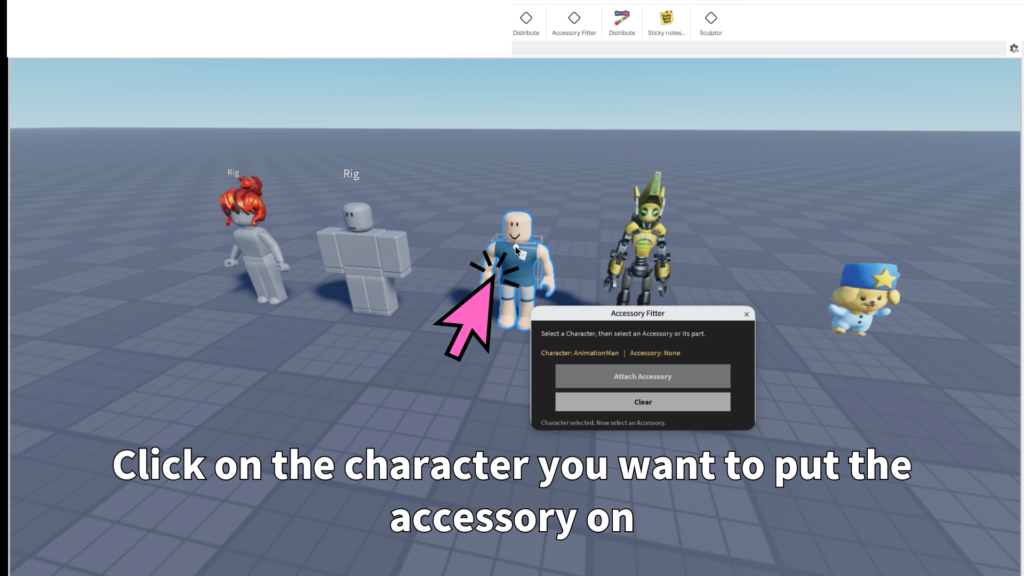
Select the character, NPC, or rig you want to edit. - Step 3
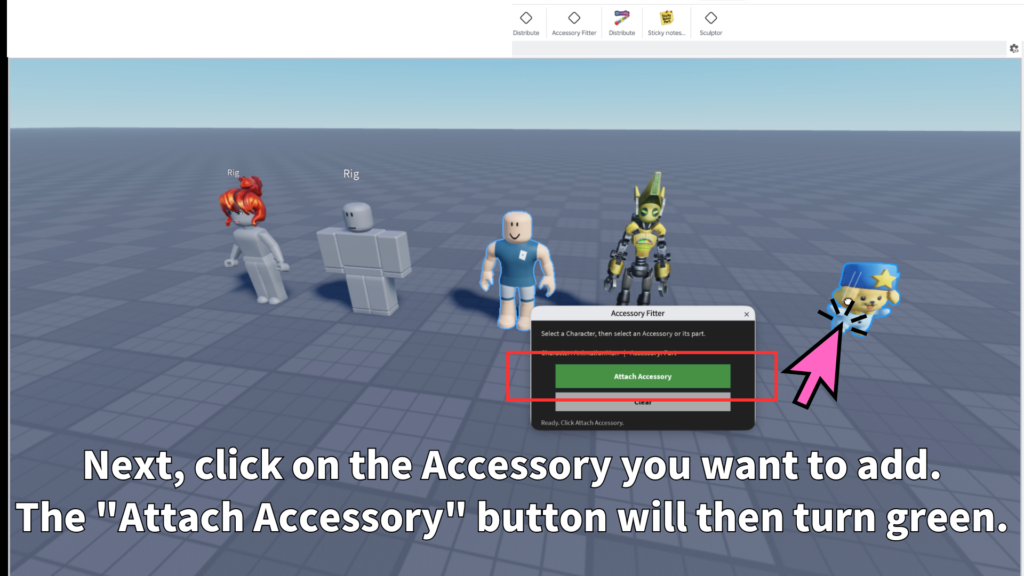
Select the accessory you want to attach. - Step 4
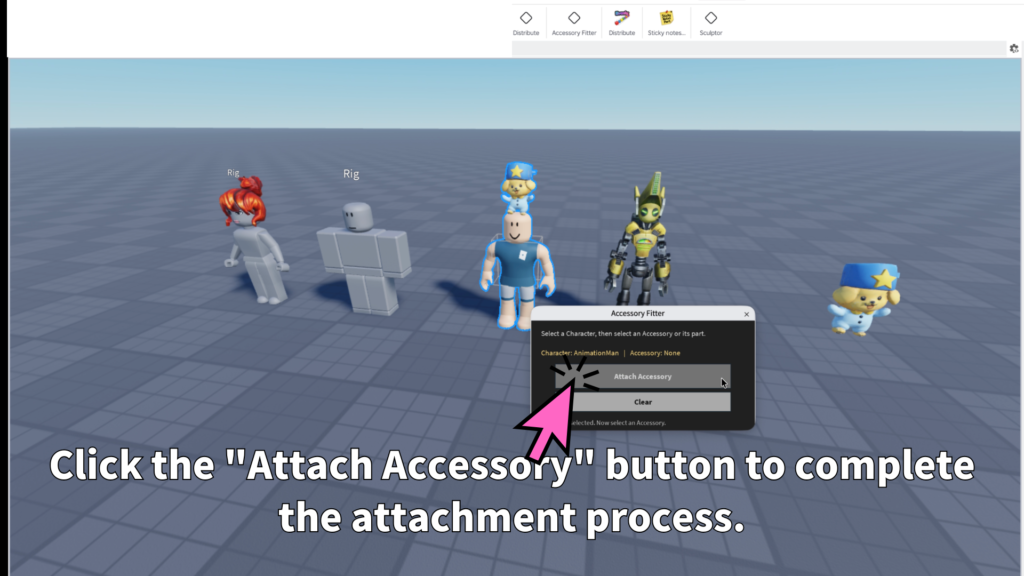
Click Attach Accessory. - Step 5
Use Clear if you want to choose again. - Result
The selected accessory is attached to the selected character.
Selection Feedback
The plugin helps reduce confusion by showing visual selection feedback.
When a character or accessory is selected, highlight feedback makes it easier
to understand what is currently chosen.
The Attach Accessory button is only ready when the needed selections are prepared,
which helps keep the workflow clear and avoids attaching the wrong object by accident.
Accessory Selection Support
In Roblox Studio, it is common to click the Handle or a part inside an accessory
instead of the accessory object itself. Accessory Fitter is designed to be forgiving
in that situation.
If you select a part inside an accessory, the plugin can find the parent Accessory
and use that as the target accessory.
Best Use Cases
Accessory Fitter is useful for creators who frequently prepare characters
or test different looks in Roblox Studio.
- NPC character setup
- Rig customization
- Avatar-style display models
- Shop mannequins
- Accessory testing
- Character decoration
- Outfit previews
- Studio workflow cleanup
Who Is This For?
Accessory Fitter is a good fit for Roblox creators who build NPCs, character shops,
avatar displays, roleplay characters, or custom rigs.
It is especially useful if you often test hats, hair, face accessories, back items,
or other avatar items on Studio characters and want a more direct workflow than
trying copy and paste repeatedly.
Recommended Use
Use Accessory Fitter when you want to attach accessories during Studio editing.
Select a clean character model that has the expected character structure,
then select the accessory you want to attach.
The plugin is best used as a practical Studio helper for preparing character visuals,
not as a replacement for every possible custom rigging workflow.
Attach accessories faster in Roblox Studio.
Accessory Fitter is available as a Roblox Studio plugin.
Use it when normal copy and paste does not place accessories correctly,
or when you want a cleaner workflow for attaching accessories to NPCs,
rigs, and characters.